
So you have your Home Assistant working just fine, but you can only access it on your mobile app while you’re at home. I had the same problem, but I wanted to be able to play with my LED lights and power switches remotely, without having to pay for Home Assistant Cloud. I already had NordVPN at hand and I knew it had Meshnet, so it was a great opportunity to use it.
What is NordVPN Meshnet?
Meshnet is NordVPN’s peer-to-peer networking feature that lets you connect multiple devices into a private virtual network. Unlike traditional VPN services that route traffic through a central server, Meshnet creates direct connections between your devices, giving you lower latency and the ability to access services (like Home Assistant) on any device in your mesh without exposing them to the public internet.
The best part? Meshnet is completely free. You don’t need a special subscription beyond the standard NordVPN subscription, and it works on Windows, macOS, Linux, iOS, and Android. You can add up to 60 devices to a single Meshnet, which is more than enough for most home setups.
Each device in your Meshnet gets assigned a unique device name (like homeassistant-linux in my case, which is the actual NordVPN Meshnet name of my Home Assistant server) and a private IP address in the 100.64.0.0/10 range. This makes it easy to remember and access your services by name, similar to how you’d use DNS.
How it works in practice
When you enable Meshnet on both your Home Assistant server and your client device, they can communicate directly over an encrypted tunnel. Port forwarding, dynamic DNS, and exposing your server to the internet are all unnecessary. It’s just a private network between your devices.
The problem I ran into (and you probably will too) is that Meshnet blocks access to Docker containers and local networks by default. This guide shows you exactly how to fix it.
Quick solution summary
If you just want the steps without the explanation, here’s what you need to do:
- Enable UFW firewall on your Linux server
- Add a rule:
sudo ufw allow in on nordlynx to any port 8123 proto tcp - Grant Meshnet access:
sudo nordvpn meshnet peer local allow <your-device-name> - Test with:
curl http://homeassistant-linux:8123(replace with your actual Meshnet device name)
The key insight: Meshnet treats Docker networks as “local” and blocks access by default. That’s why SSH works but Home Assistant doesn’t. The peer local allow command fixes this.
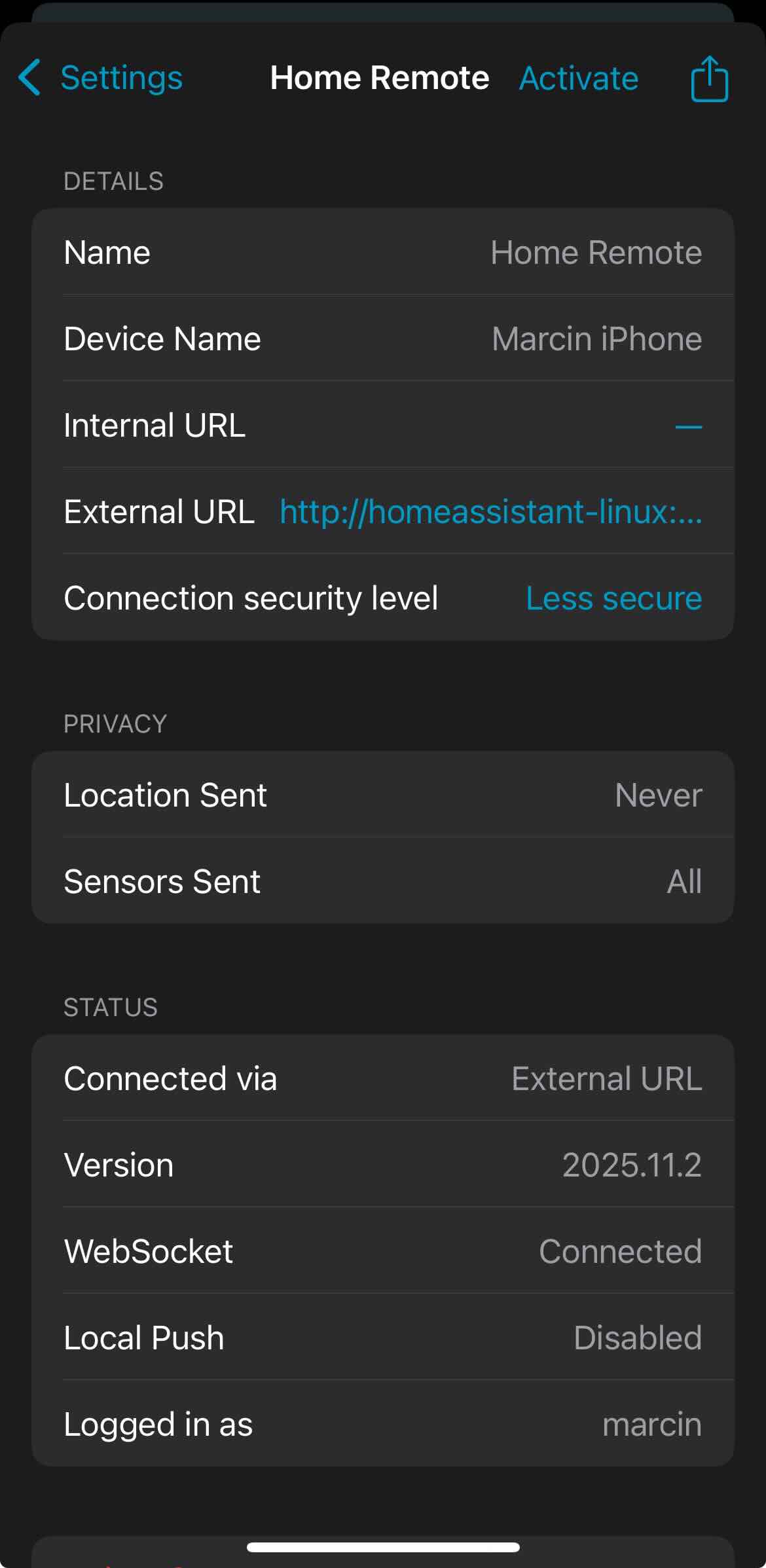
Meshnet configuration on iOS
Once everything is set up correctly, you will be able to access Home Assistant remotely, e.g. when you’re out of home on iOS:
Prerequisites
Before you start, make sure you have:
- A Linux server running Home Assistant (preferably in Docker with docker-compose)
- NordVPN installed on that Linux server
- NordVPN Meshnet enabled on both your Home Assistant server and your client device
- UFW firewall (Uncomplicated Firewall) installed on the Linux server
- At least one other device with NordVPN Meshnet enabled to test the connection
If you’re running Home Assistant in Docker, your setup should look something like this:
# ... other services skipped
services:
  homeassistant:
    container_name: homeassistant
    image: ghcr.io/home-assistant/home-assistant:stable
    restart: always
    volumes:
      - ./data/homeassistant:/config
    ports:
      - 8123:8123
    networks:
      - ha_net

networks:
  ha_net:
    driver: bridge
Diagnostic steps: How to debug “Home Assistant not working on meshnet”
Check if Home Assistant is actually listening
From the Linux server itself, verify the port is exposed:
docker ps | grep homeassistant
You should see 0.0.0.0:8123->8123/tcp in the PORTS column. If you see something else, your Docker port mapping is misconfigured.
Also check if something is listening:
sudo ss -tulpn | grep 8123
or
sudo netstat -tulpn | grep 8123
You should see a line with LISTEN on 0.0.0.0:8123 or :::8123.
Verify the local network path works first
From another device on your LAN, try accessing Home Assistant using the server’s local IP:
curl -v http://192.168.x.x:8123
or if you prefer a simple port check:
nc -vz 192.168.x.x 8123
You should get an HTTP response or “succeeded” message. If this fails, your Docker setup or local network is broken. Fix this before moving on.
Test the meshnet connection itself
From your client device that has Meshnet enabled, try to reach SSH first:
nc -vz <meshnet-device-name> 22
Replace <meshnet-device-name> with the device name from Meshnet (like the homeassistant-linux name in your Meshnet settings). If SSH works, Meshnet itself is working.
Now try Home Assistant:
nc -vz <meshnet-device-name> 8123
If SSH succeeds but this fails, you’ve found the exact problem: Meshnet is blocking traffic to port 8123 specifically.
Understand why SSH works but Home Assistant doesn’t
SSH works because it binds to the host’s nordlynx interface directly. Home Assistant runs inside a Docker container on a bridge network (172.17.0.0/16 range by default). Meshnet treats Docker networks as “local networks” and blocks peer access to them unless you explicitly grant permission.
The complete solution: step-by-step
Step 1: enable UFW
First, enable UFW on your Linux server (if not already enabled):
sudo ufw enable
Check current status:
sudo ufw status
Step 2: allow meshnet traffic on port 8123
The key command that makes Home Assistant accessible over Meshnet:
sudo ufw allow in on nordlynx to any port 8123 proto tcp
This tells the firewall: “If traffic comes in via the NordVPN Meshnet interface (nordlynx) on TCP port 8123, allow it.”
Step 3: reload UFW
Apply the changes immediately:
sudo ufw reload
Verify the rule was added:
sudo ufw status numbered
You should see something like:
[ N] 8123/tcp on nordlynx ALLOW Anywhere
Step 4: grant meshnet local network access
This is the critical step that most guides miss. On your Linux server, run:
nordvpn meshnet peer list
This will show all connected Meshnet peers. Find the device you’re connecting from (like the Meshnet device name shown in your NordVPN app).
Then allow that device to access local networks:
nordvpn meshnet peer local allow <your-connecting-device-name>
For example:
nordvpn meshnet peer local allow secret.cat-everest.nord
This is essential. Docker containers live on a bridge network, which Meshnet classifies as a “local network.” By default, Meshnet blocks peer access to local networks. This command explicitly grants permission.
If you want to allow all Meshnet peers (less secure, but simpler), you can run:
nordvpn meshnet peer local allow all
Step 5: test the connection
From your client device, try accessing Home Assistant using the Meshnet device name:
curl http://homeassistant-linux:8123
Or open a browser and navigate to:
http://homeassistant-linux:8123
Replace homeassistant-linux with whatever your actual Meshnet device name is.
It should work now. If it doesn’t, double-check that:
- The device name in
meshnet peer local allowmatches exactly (case-sensitive) - UFW is allowing traffic on the
nordlynxinterface - Home Assistant is still running and listening on 8123
That’s all
Good luck and happy Zigbee’ing 🐝
Comments